

- Pool & Spa
- Pool Education & Support
- Professional Support
- Instructions for New IntelliCenter® System Installations
Firmware 3.008 or lower
Firmware 3.014 or Higher
1. Go to the IntelliCenter outside control panel touch screen:
- Navigate to Settings > Pentair User Portal > Add New Account.
- Enter your Pentair Pool app account email and password.
- Confirm login is successful.
2. View IntelliCenter account on Pentair Pool app:
- Install the latest version of the Pentair Pool app.
- Log out of the Pentair Pool app and then log in again.
- View the IntelliCenter system on the Dashboard or select it from the "Pools" screen.
3. Success! Your IntelliCenter system is now linked to your Pentair Pool app.

Important note
This change only applies to new accounts created on or after August 21, 2024.
IntelliCenter® systems are now securely linked to the Pentair Pool app using a simple QR code scan. This mobile‑first experience replaces the legacy panel‑based account creation flow and guides you step‑by‑step directly from your phone.
What you’ll need before you start
- A smartphone with the Pentair Pool app installed (version 4.2.19 or later)
- An active Pentair Pool app account (or be ready to create one in the app)
- An IntelliCenter system running firmware 3.014 or higher
- The IntelliCenter outdoor control panel visible so you can scan the QR code on the screen display
Follow these instructions to link your IntelliCenter system
1. Open the Pentair Pool app and add your IntelliCenter
- Open the Pentair Pool app on your phone.
- Sign in with your Pentair account or create a new account if prompted.
- From the app menu, select Add a Device.
- Choose IntelliCenter from the list of supported equipment.

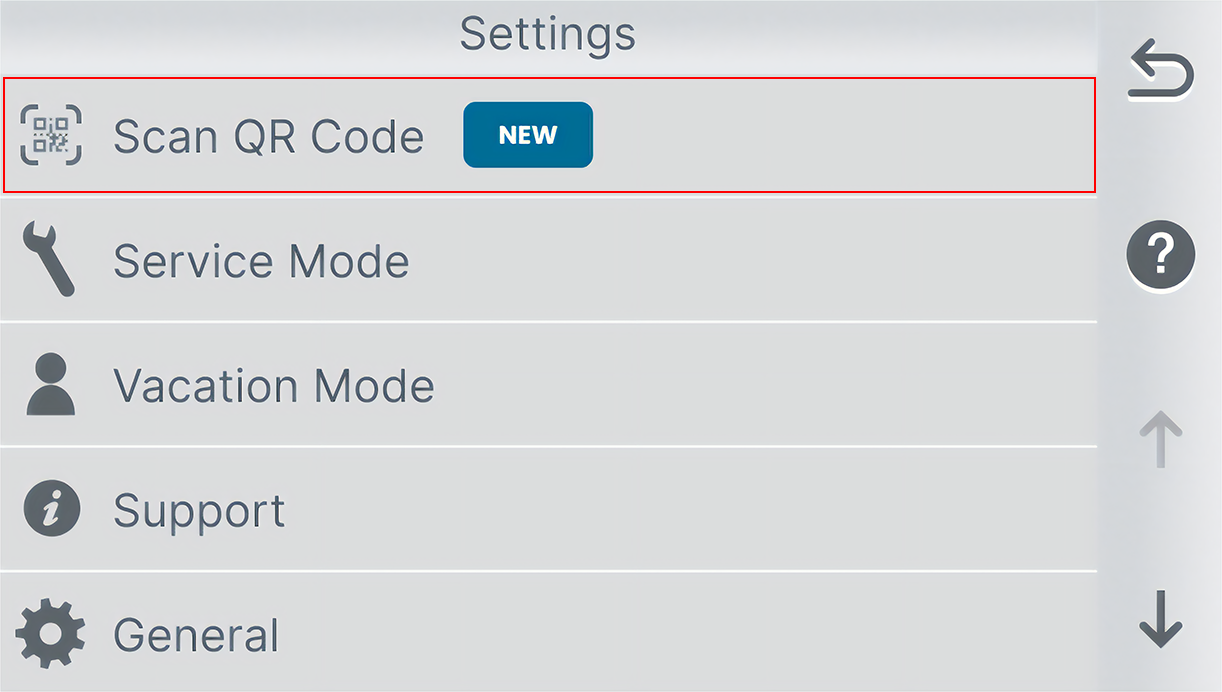
2. Scan the QR code shown on the IntelliCenter outdoor control panel screen
- Follow the instructions in the app to locate and display the QR code
- The QR code appears on the digital display, not on the physical enclosure.
- The app will securely link the IntelliCenter system to your Pentair account.
3. Name your device, confirm the installation address, and invite others
- Name your IntelliCenter system (for example, Pool, Spa, or Backyard Pool).
- Enter or confirm the installation address where the system is installed.
- If needed, invite additional users such as family members or service professionals by entering their
email address.
Invited users will receive an email or in-app alert with instructions to accept access.
Success! Your IntelliCenter system is now linked to your Pentair Pool app.
Questions? We can help.
Visit www.pentair.com/intellicenterPHA for additional support and resources.
Need a helping hand?
Our technical support team can assist with any questions or concerns regarding this update.
Find A Dealer
Connect with a Pentair dealer near you.